
 Likes:
 Reply With Quote
@Teksas
You must mark ,2,
Welcome guest, is this your first visit? Click the "Create Account" button now to join.


Results 121 to 130 of 371
Thread: iGO Speedcam (DISCUSSION)
-
13th March 2024, 01:56 PM #121SUPER MODERATOR


- Join Date
- Oct 2019
- Location
- Belarus
- Posts
- 3,893
- Rep Power
- 2776

@Texas
You can divide them by type with this program, very easily and quickly.
[Only registered and activated users can see links. ]
there is a file there, how many decimal places are needed, 5,6,7 when saving the file the coordinates change
default number is 6
position.number.decimal=6
change to text, then back
spudigo.cfg - spudigo.txt - spudigo.cfgLast edited by Andrey Form; 13th March 2024 at 02:03 PM.

[Only registered and activated users can see links. ]
[Only registered and activated users can see links. ]
[Only registered and activated users can see links. ]
[Only registered and activated users can see links. ]
[Only registered and activated users can see links. ]
[Only registered and activated users can see links. ]
©AF_2020-26
-
13th March 2024, 02:30 PM #122Member +
- Join Date
- Jan 2018
- Location
- pl
- Posts
- 34
- Rep Power
- 9
-
13th March 2024, 02:58 PM #123Master


- Join Date
- May 2014
- Location
- I'm on the air
- Posts
- 779
- Rep Power
- 1048
@Texas,
In Notepad++ use search with RegEx (Regular Expression), ex: (.*),(.*),2,(.*),(.*).
You can also use it for replacement: Find: (.*),(.*),2,(.*),(.*) Replace with: $1,$2,1,$3,$4
",2," don't work, you will have Direction and Type result.Last edited by mytheuzen; 13th March 2024 at 04:13 PM.
-
13th March 2024, 03:28 PM #124Master

- Join Date
- Nov 2017
- Location
- europa
- Posts
- 141
- Rep Power
- 279
@ Texas
With Notepad++ you can use Replace... with a regular expression
it will only replace the lines containing the OLD_TYPE regardless of the number of lines and other existing radars, there is no need to segment the file as recommended by Andrey Form using SpudIgo
check 'Regular Expression'
fill 'find what' with this by putting the OLD_TYPE value of the radar type to replace
((\d*)\.(\d*),(\d*)\.(\d*)),OLD_TYPE
do the same in "replace with", put this by putting the new value of the type
$1,NEW_TYPE
then all that remains is to use the buttons: 'Find next' , 'Replace' or 'Replace all'
((\d*)\.(\d*),(\d*)\.(\d*)),2
$1,5
after replacing all occurence, CTRL+Z to cancel if in doubt
Last edited by lunapark; 13th March 2024 at 05:21 PM.
-
13th March 2024, 04:12 PM #125Master


- Join Date
- Feb 2012
- Location
- Europe
- Posts
- 185
- Rep Power
- 1930
-
13th March 2024, 05:29 PM #126Master

- Join Date
- Jul 2015
- Location
- Near you
- Posts
- 613
- Rep Power
- 316
AMAZING GUYS
First of thank you very much and I am ashamed since I allowed myself so long without powerfull tool like NOTEPAD+++ and Speedcam Converter.
A bit of Google, YouTube, your help here with commands and I managed to clean an sort out my database just as I like it.
1. Found a camera set
2. Combine them using Text File Joiner
3. Cleaned all those lines or empty spaces with RE and ^\R command
4. Put it back into SpeedConverter since this program is very sensitive if there are some strange lines of code or comments. (Had to deal with it first using Notepad+++)
5. Selected my fav categories and in the end super speedcam file
6. Converted them using Pyhton Script for ST or simply for iGO.
Thank you guys
Spoiler: screenshotNOTICE: By no means I advise installing illegal software nor I support such actions. This is just for EDUCATIONAL PURPOSES. Please use my post in order to understand or learn something new. I am a proud owner of LICENSED NAVIGATION but just to satisfy my curiosity I test, read and research. Sharing illegal material is against the law.
-
15th March 2024, 08:12 AM #127Master

- Join Date
- Jul 2017
- Location
- IL
- Posts
- 847
- Rep Power
- 307
 How to upload a text file in Excel
@Texas and all the guys
I think my way is simplest, shorter and more precise.
1. Open Excel.
2. Import a NEW text file of the speedcams you want to handle and under ALL FILES.
3. Mark (while uploading) the "separators" you want and see how it will look to you in a reduced preview.
Spoiler: And that's it all
The full and exact way - [Only registered and activated users can see links. ]Last edited by kwbs; 24th March 2024 at 03:55 PM.
-
15th March 2024, 10:44 AM #128Master
- Join Date
- May 2014
- Location
- I'm on the air
- Posts
- 779
- Rep Power
- 1048
There is no single way to achieve the result; the most important thing is to use software with which one is familiar and to ensure that the procedure is as simple and as quick as possible.
-
21st March 2024, 06:51 PM #129Master
- Join Date
- Jul 2017
- Location
- IL
- Posts
- 847
- Rep Power
- 307
How to process a Text file in Excel and save it again as a Text file
Hi @Texas
As per your request, here is the way to import a Text file of spdcams into Excel and process it as you wish.
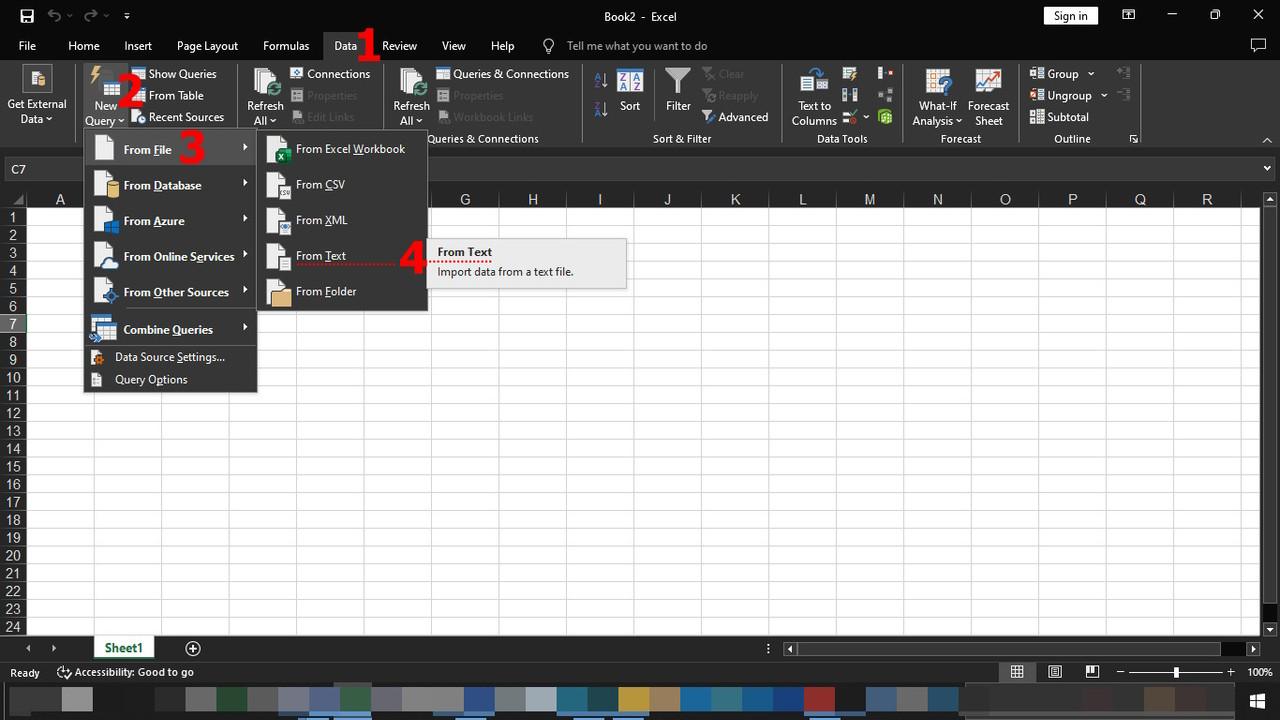
Open a new Excel sheet and then (follow the numbered steps): Originally Posted by kwbs

1. Highlight DATA
2. Go To NEW QUERY
3. Point On From FILE
4. Choose Import Data From a Text File
Spoiler: 1-2-3-4
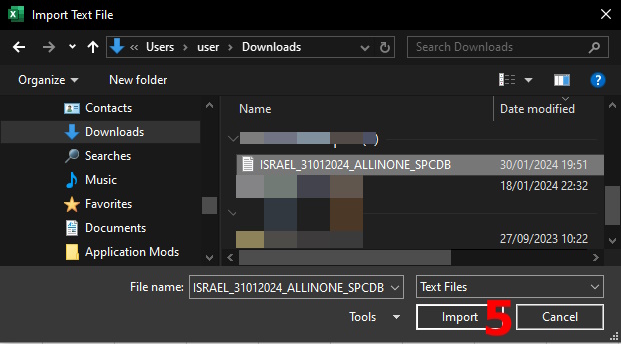
5. IMPORT Text File
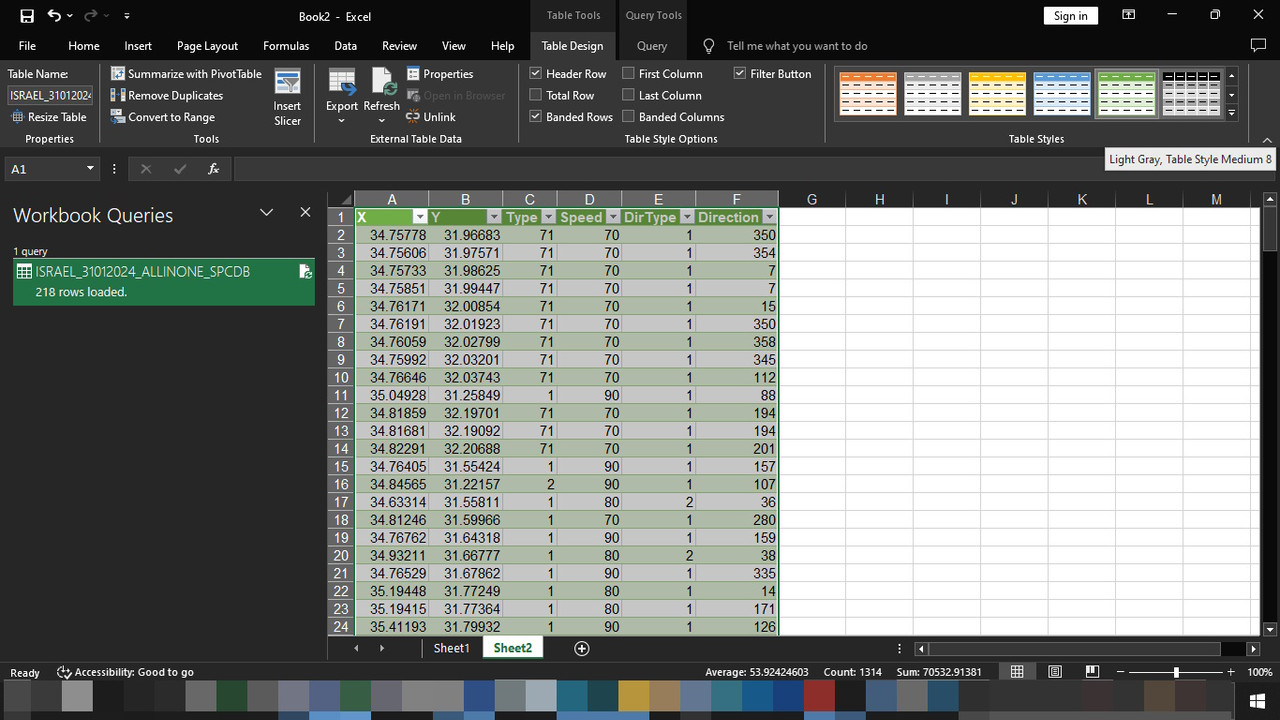
Sample view/total 218 spcams/file of: ISRAEL_31012024_ALLINONE_SPCDB
Spoiler: 5
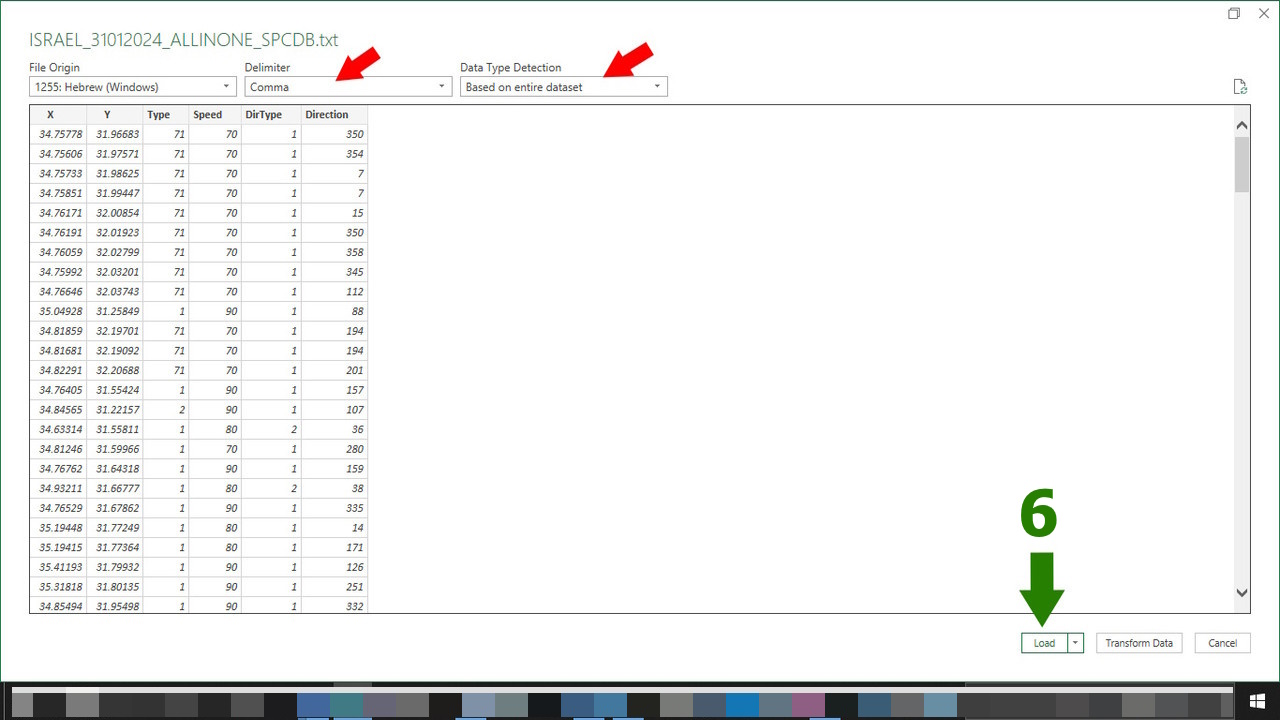
6. LOAD
Spoiler: 6
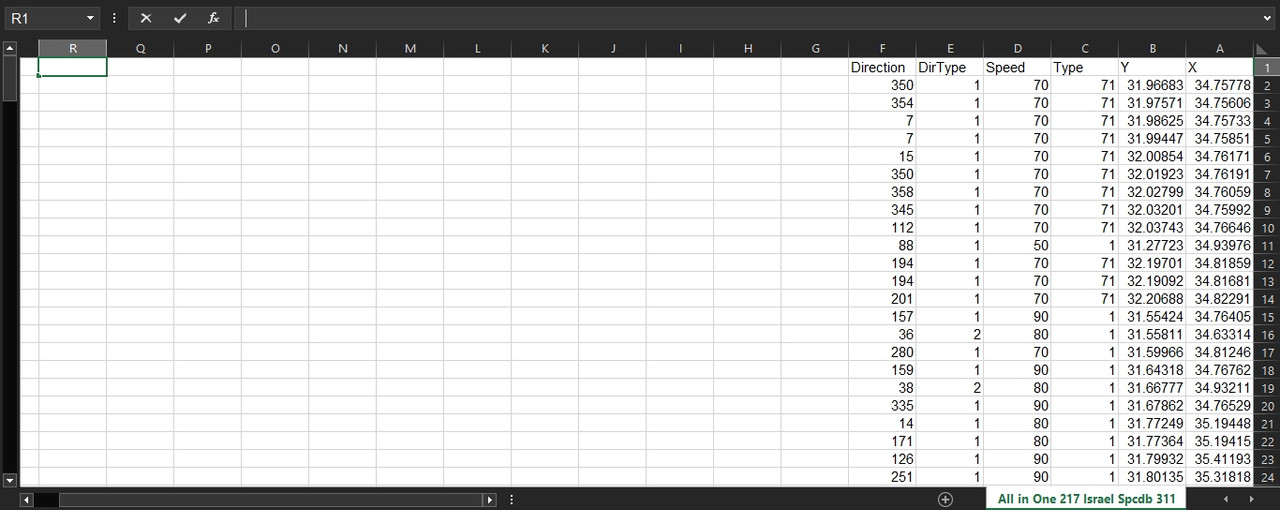
7. ALL THE 218 SPDCAMS RECORDS WERE LOADED IN THE EXCEL
Spoiler: 7
8. Finally - Save It As A Text File Type
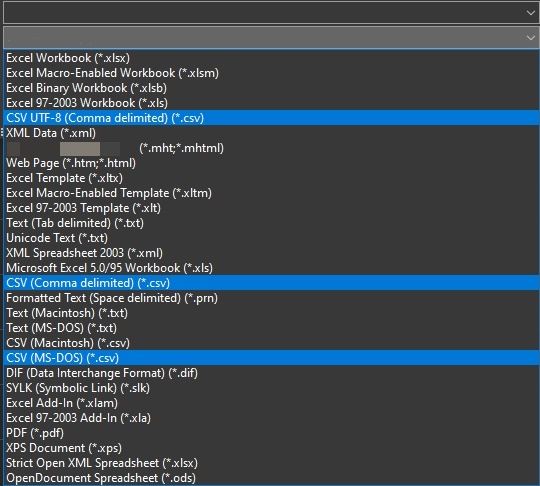
After you have finished working on the Excel, save it first as an Excel file.
Then, go to FILE > SAVE AS and, in "save as type" - You can choose any of the three file type options highlighted in the image and, give this file a new name!
Go to the folder where the new .csv file was downloaded and change its extension from .csv to .txt!
Now, the new Text file is ready for you to work again in the navigation software.
Spoiler: 8. "Save as Type"Last edited by kwbs; 25th March 2024 at 05:50 AM.
-
6th May 2024, 04:41 PM #130Member +
- Join Date
- May 2017
- Location
- netherlands
- Posts
- 33
- Rep Power
- 10
germany speed file spc file
hello members,
i can not find a german speedcam file for 2023/4 maps.
is there one?



Bookmarks