
 Likes:


 Reply With Quote
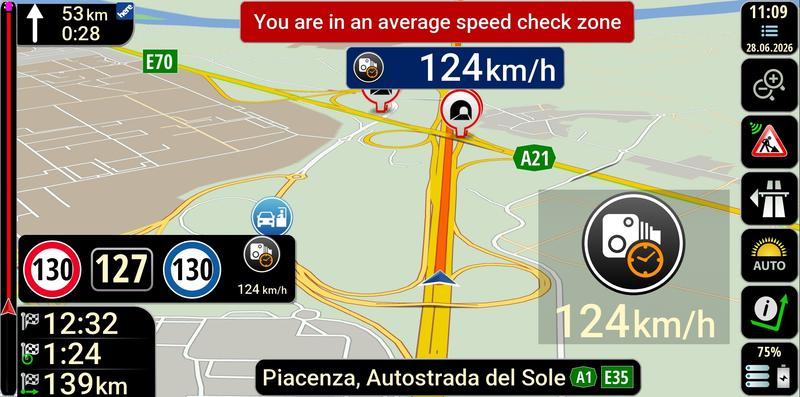
skin updated
skin nextgen WORLD 64 bit by pongo®
25-09-2026
Spoiler: skin
Spoiler: lithuanian TTS
Welcome guest, is this your first visit? Click the "Create Account" button now to join.


Results 1 to 3 of 3
-
27th June 2026, 09:48 AM #1Master


- Join Date
- May 2022
- Location
- Kaunas
- Age
- 72
- Posts
- 32
- Rep Power
- 970
-
25th September 2026, 04:27 PM #2Master
- Join Date
- May 2022
- Location
- Kaunas
- Age
- 72
- Posts
- 32
- Rep Power
- 970

Last edited by Andrey Form; 25th September 2026 at 06:31 PM.
pongo®
-
Yesterday, 11:28 AM #3Master
- Join Date
- May 2022
- Location
- Kaunas
- Age
- 72
- Posts
- 32
- Rep Power
- 970
I updated the long-forgotten "Weather NextGen" (author: Neoss75)
Spoiler: weather
1. Set the iGo World folder: you need to enter the path to the folder containing the save, folder where the data is recorded. When you first log into the settings, the program will try to determine the path. Click OK, if the path is correct, the program will inform about it, otherwise you need to input the right path, and click OK.
2. Lang: the forecast will be in the chosen language.
3. Units: the forecast will be presented in the selected measurement units.
4. Close the program after service started button: If disabled, when you start the service, the program will not be closed by itself, it must be closed manually (quit the iGO app, go back to the Weather NextGen app and stop the service). When enabled, the service will close 10 seconds after exiting the iGO app (make sure you have the correct name for the iGO app e.g. jp.pioneer.mbg.avicsync to make the service work).
5. Packages list: possible names of iGO packages installed.
6.Sound: will play a sound when the forecast updated.
7. Forecast update frequency in minutes: the number of minutes after which the forecast will be updated.
8. Next time, launch "iGO Weather," press "Start Service," and "iGO World" will start.Last edited by Andrey Form; Yesterday at 11:32 AM.
pongo®
Advertissements


Powered by vBulletin
Copyright © 2026 vBulletin Solutions, Inc. All rights reserved.
Copyright © 2026 vBulletin Solutions, Inc. All rights reserved.
All times are GMT +1. The time now is 11:25 AM.
Bookmarks